
A .dsx export file is a file you generate from the DataStage Designer Client to transfer DataStage-specific assets between projects.
When you Export DSX files for S2PX conversion…
-
⛔️ DO NOT include binaries.
-
⛔️ DO NOT include assets in your DSX which fail to compile in DataStage.
-
✅ DO include, in the exported DSX, all Jobs' dependencies required for successful compilation, such as Shared Containers and Parameter Sets.
Steps
-
Start the DataStage Designer client and open the relevant Project.
-
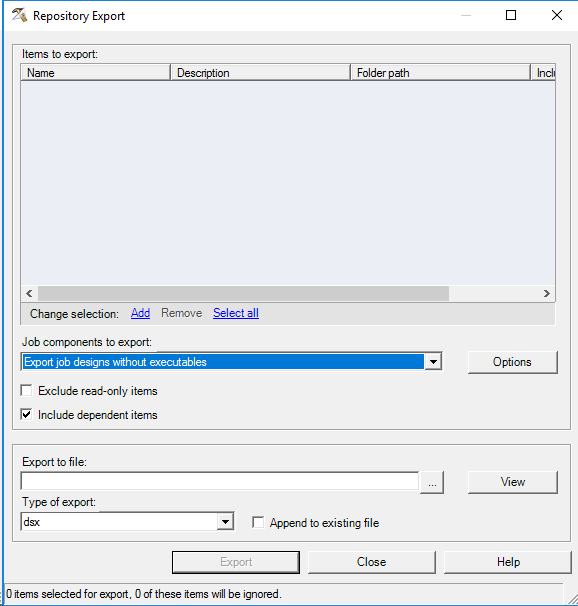
In the DataStage Designer Main Menu click on Export → DataStage Components to open the Repository Export window.
-
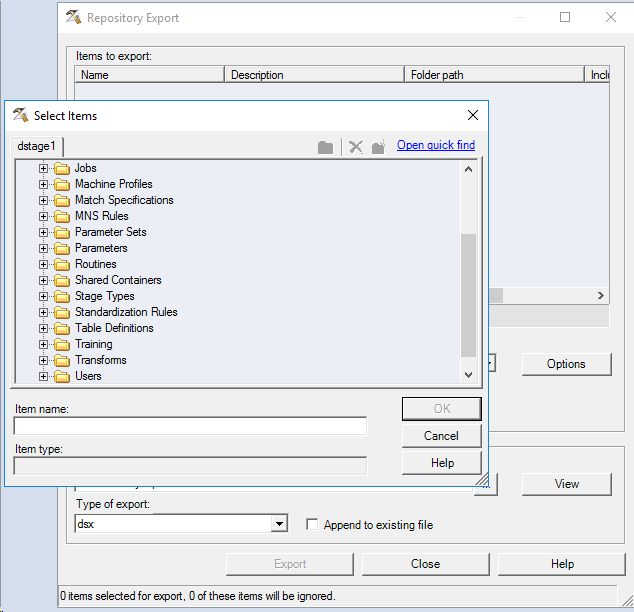
Click Add to open the Select Items window
-
Click on a Folder to choose the contents. Alternatively Click on the [+] next to a folder to choose individual objects. You can also use Ctrl-Click to make multiple selections.
-
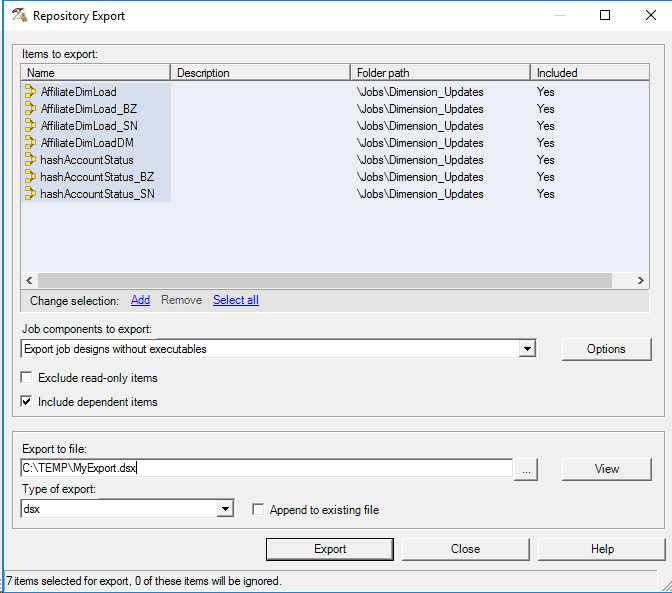
Click OK to add the chosen objects to the Items to export window.
-
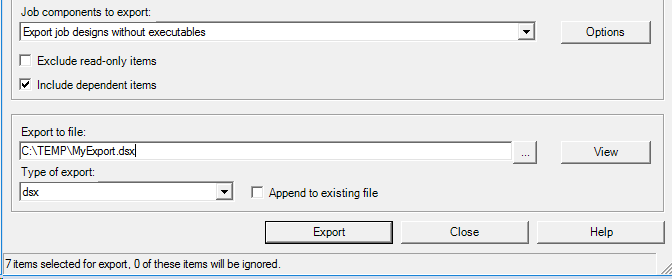
Choose Export job designs without executables as the Job components to Export.
-
Provide the path where your export file will be stored. Note that this path is on the local Windows workstation where the Designer is executing.
-
Leave the default Type of export as dsx.
-
Click Export button to complete the export.